Operator app
Your next task, ready when you are.
Follow your assigned production work, capture information at the step and keep track of what remains to be done.
01
Getting in, and what is waiting
01
Sign in
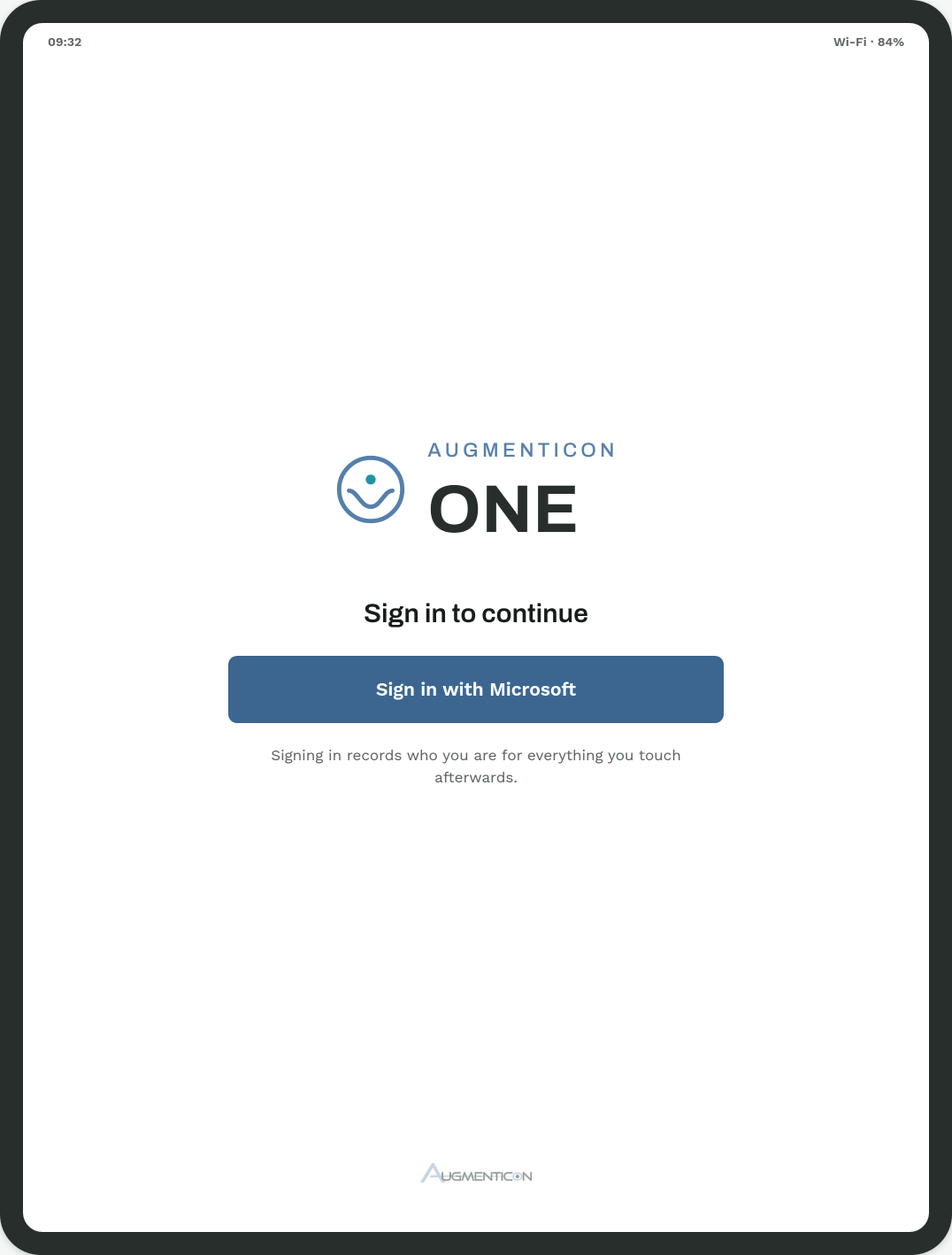
Sign-in uses the organisation's own Microsoft account. There is no biometric step, because operators in the hot cell work with gloves.
02
My tasks
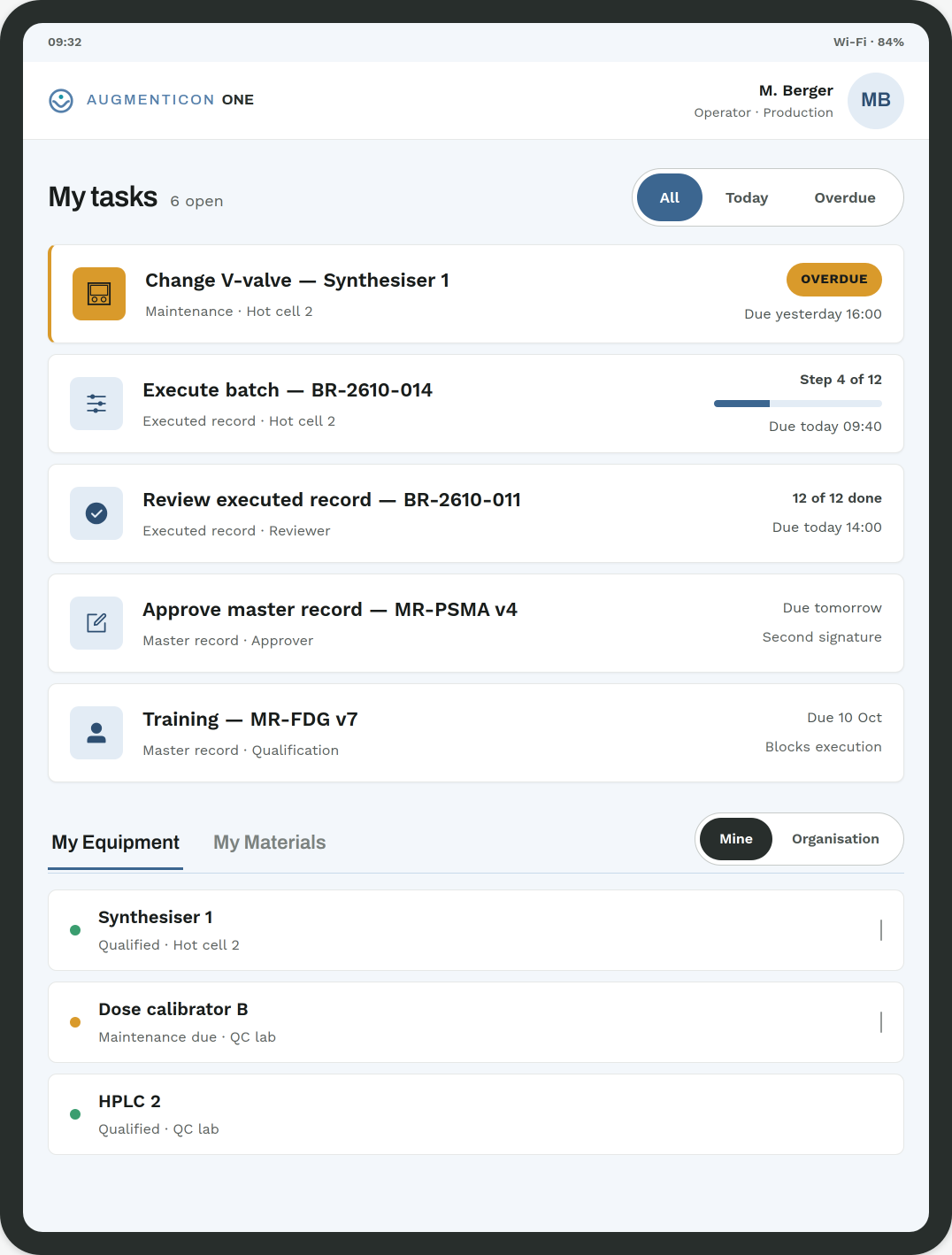
The tasks assigned to this person: an overdue maintenance job, a batch mid-execution, a record to review, a master record to approve, a training that blocks execution. Below it, My Equipment and My Materials.
02
Recording a step
03
Executing a step
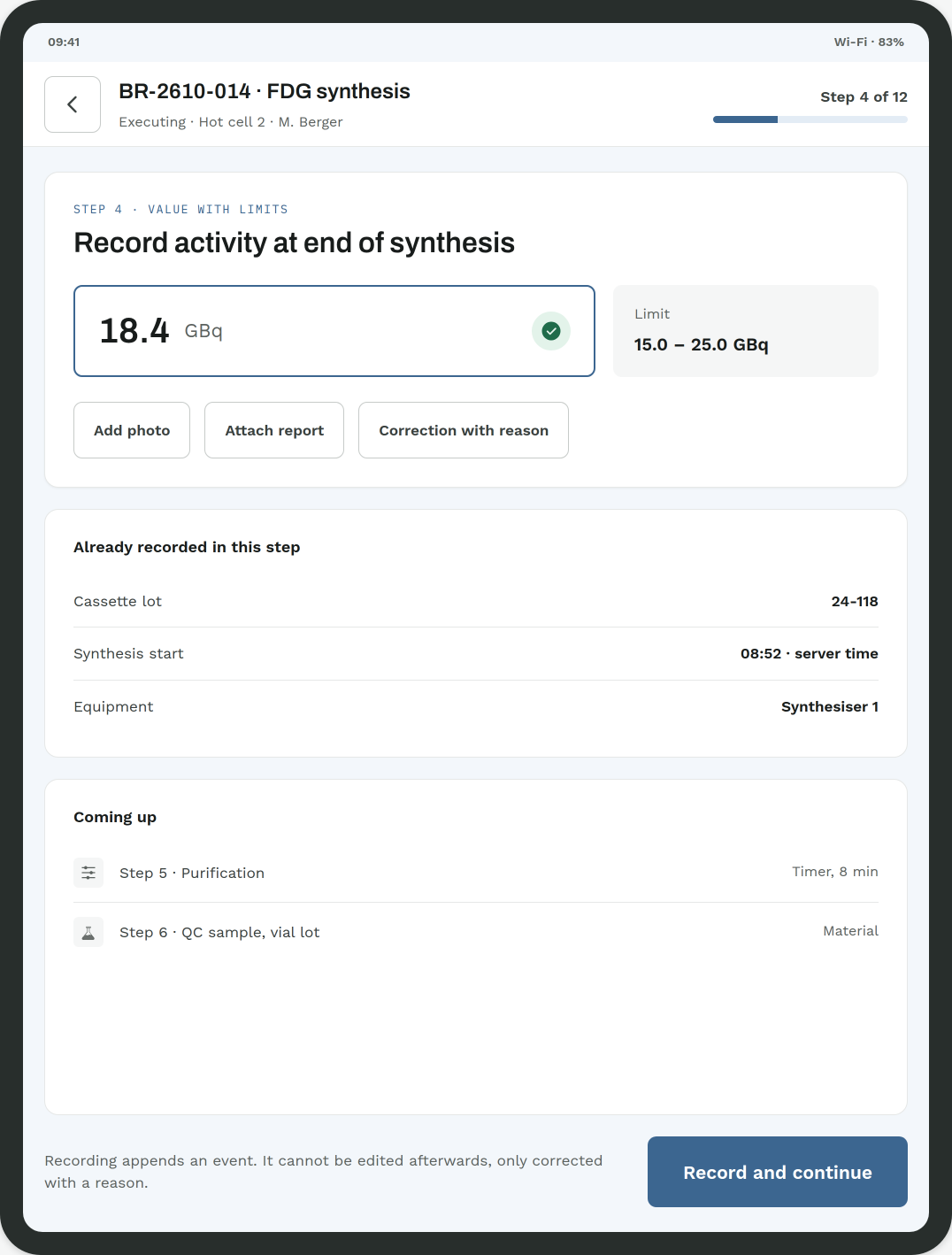
One step on screen at a time, with its limit beside the value and the entries already made in that step below it. Recording appends an event: it cannot be edited afterwards, only corrected with a reason.
04
Nothing to do
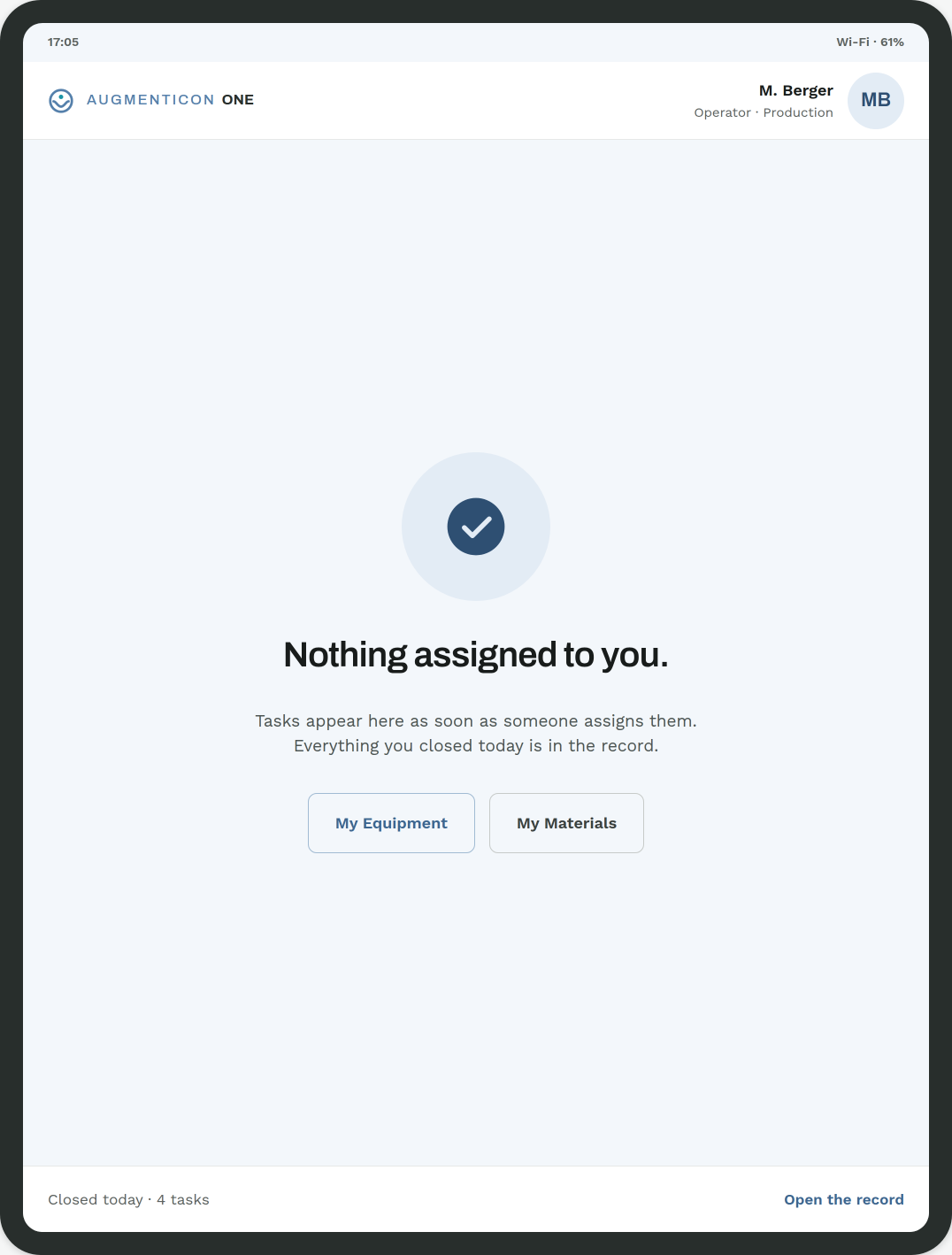
When nothing is assigned, the app says so instead of showing an empty list.
03
Scan, don't retype
Scan materials and equipment, import available results and record the remaining entries directly in the step. The status of materials and equipment is shown while the work is being done.
05
Equipment
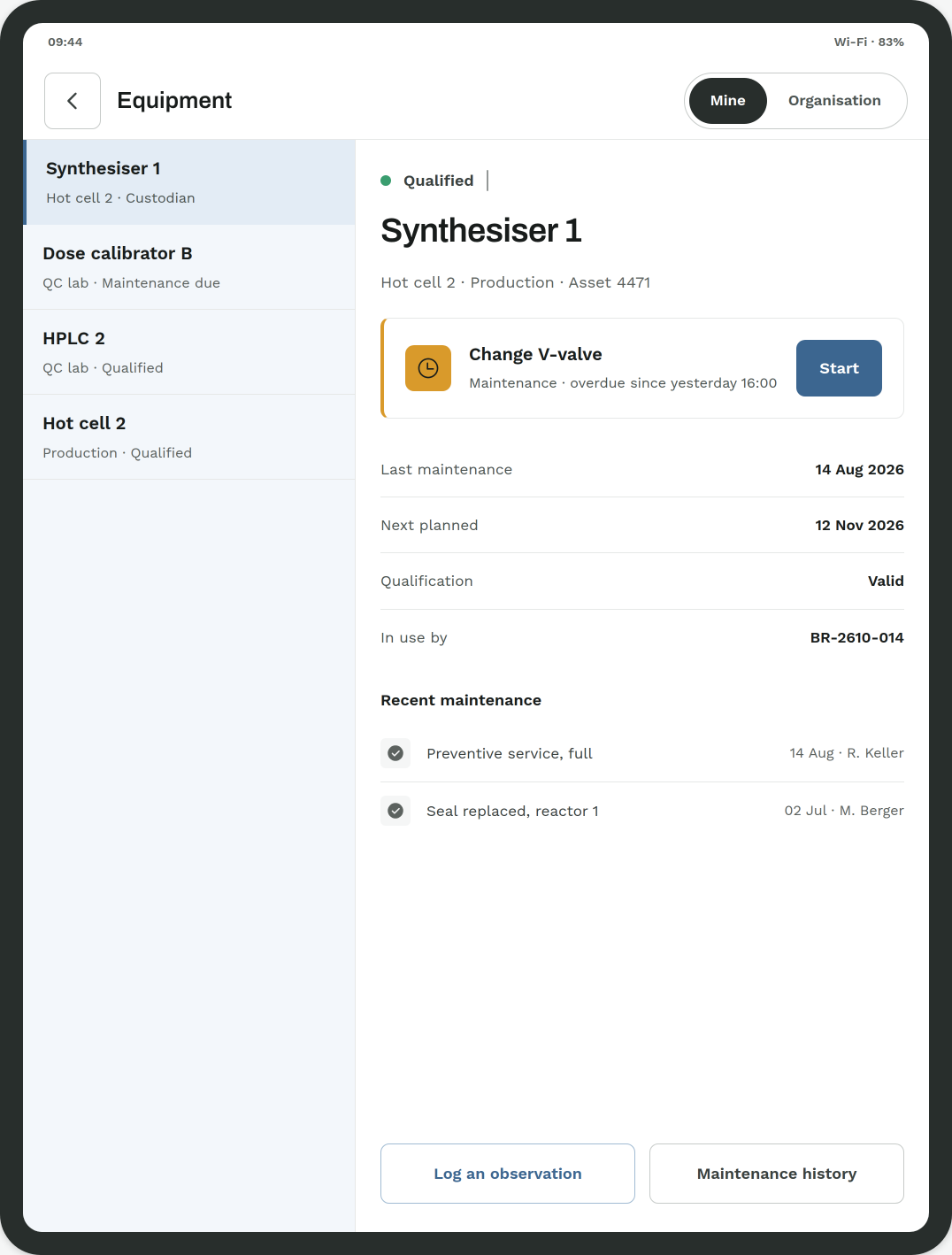
A scan opens the matching equipment record, with its qualification state, maintenance due date and the batch currently using it. The Mine / Organisation pill switches the scope, and a Custodian badge marks the rows this person is assigned to.
06
Materials
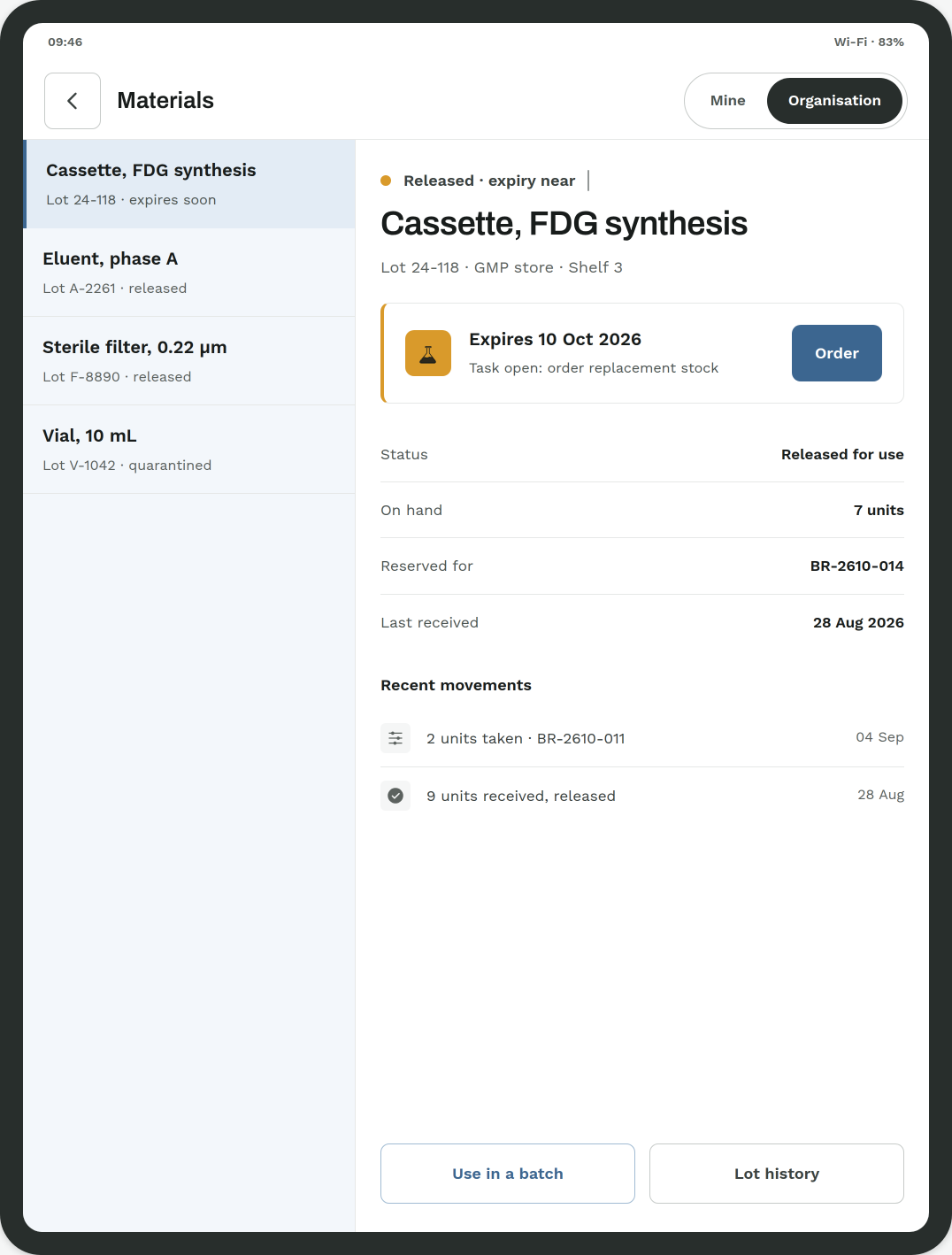
Lots with their expiry and their remaining quantity, so the operator sees before starting whether the material in front of them may still be used.
Status recognised in time
Example: a lot past its expiry, or equipment whose calibration has lapsed, is flagged before the operator starts the step. The operator resolves the flag as part of the work. The full exception-handling workflow is not described on this page.
04
Initialing and signing
Individual entries are attributed to the signed-in user and logged, which reduces the repeated manual initialing of paper fields. The document signatures your process requires still apply — this does not replace them, and it does not remove any independent check your process calls for.
About these screens
The app is a native iPad application. The screens shown are renders of the design. The batch, lot, tracer and person names are invented; the structure is the real one. What the screens show of the computer vision control is covered separately — see a read cassette setup and how the control works. Screens are sized for gloved hands: touch targets from 64px, list rows from 92px.